WP Bakery Pagebuilder is one of my favorite WordPress plugins of all time. In fact, I’m using it right now to post this article. However, there is one thing about it that bothers me time and time again and it’s the mobile handling of tabbed content.
To say WP Bakery is the only tabbed content solution that bothers me would be unfair; most “responsive” tabs suffer from this same issue. Although the tabs scale down and stack in mobile, navigating from tab to tab lacks a UI that tells the user that anything has happened on the page when a tab is selected
The image on the right shows a mobile view of a series of tabs listing different services provided by this client. The content within each tab is under the fold right below this list. When the user selects a service, the active link is highlighted but that’s all; there is nothing to indicate that any change has happened on the page.
A user could easily assume these are external links, links to other pages, and so on. Without UI to show that content has indeed been changed, one could be lead to believe these links are all broken.
That’s not the only issue; a user has to scroll up and down a fair amount every time they want to navigate and read. The simplest solution is to tuck the items into a dropdown.
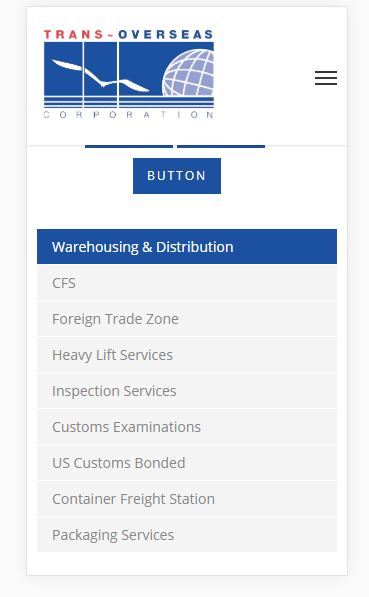
A surprise to no one, this is much easier said than done, especially within the confines of WP Bakery’s existing code. If we were to build these tabs from scratch, a combination of Jquery and CSS does the job easily. But because we are essentially modifying something that exists to extend its features, the process is a different animal entirely.
Objective:
Redesign WP Bakery’s existing module to clearly show changing content when navigating between tabs in mobile view.
- Retain desktop tabbed view
- Render tab list into dropdown in mobile
- Minimize risk of tabbed content falling below the fold; minimize risk of tab navigation filling whole mobile screen
- Create a fully responsive solution without modifying WP Bakery’s existing module
Obstacles:
- Seamless switching from mobile to desktop view
- Adding some kind of controller to collapse and expand the menu ONLY in mobile view without modifying existing code
- Making sure the navigation also collapses once a user has selected a list item ONLY in mobile
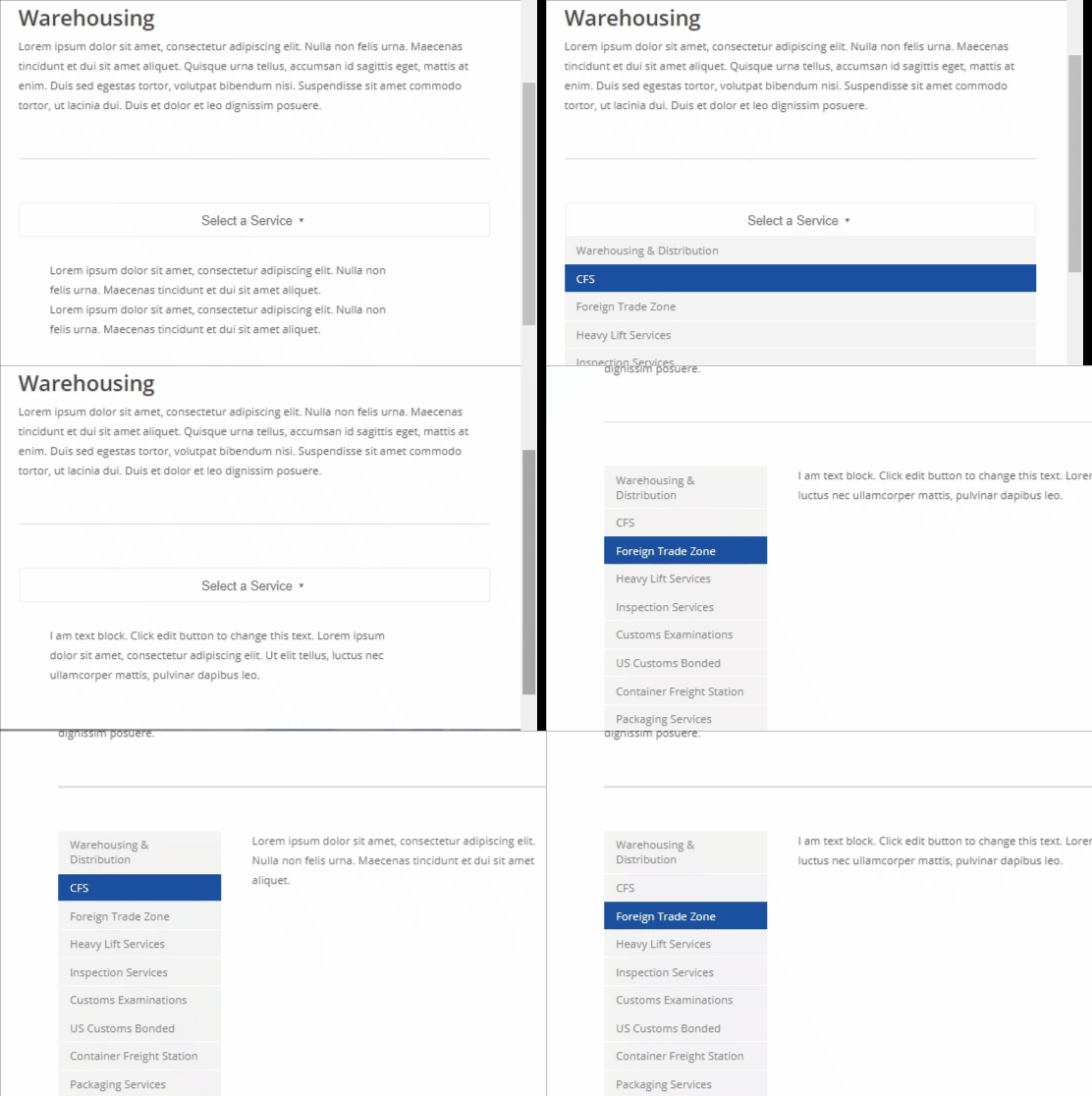
The Solution
Jquery and CSS Media queries were employed to add important classes and elements and control its behavior depending on screen size. In the content builder, I added a class, extraclass to a tabbed content module to target one specific tab set.
Then, in Jquery, I added a button to use as the controller to expand/collapse the navigation list in mobile, .service-toggle.
I targeted the content that the button would toggle, .tabbed ul
One of the biggest obstacles in this process was hiding the tabs after the user has selected a service. It’s one thing to expand/collapse the section, but another function completely to close the same menu after a link is clicked since mobile relies on touch rather than hover states.
Adding slideToggle function to .click(function) was relatively easy. However, the desktop version did not have the button controller and hiding the nav list onclick in desktop caused the entire menu to become inaccessible after one click. I would have to find some way to make the onclick function trigger only in mobile.
Jquery was used once again to add a class to the mobile version of the tab navigation, .tab-sm. The click function was modified to target only this class, preventing this same function from firing in desktop.
A separate and similar function had to be written to account for the possibility of the window being resized. Using CSS to add a class to the window resizing turned out to be better than using jquery to find out the window size, as resizing caused the function to fire multiple times.
jQuery(document).ready(function($) {

    $(".extraclass").prepend('<button class="service-toggle" id="myButton1">Select a Service ▾</button>');


   $("button").click(function(){
        $(".tabbed ul").slideToggle();
       });


  $(".extraclass a").click(function(){
        $(".tab-sm ul").slideToggle();
      });


$(window).resize(function() {
  if ($(window).outerWidth() < 825) {
          $('.extraclass').addClass('tab-sm');
     }
  else{
  $('.extraclass').removeClass('tab-sm');
  }
});


if ($(window).outerWidth() < 825) {
   $('.extraclass').addClass('tab-sm');
}
else {
   $('.extraclass').removeClass('tab-sm');
}


})
.ui-tabs-nav {display: none;}
.service-toggle {display: none;}

.wpb_tabs_nav li {
white-space: normal !important;
border-bottom: 1px solid #fff;
line-height: normal !important;
}


@media screen and (min-width: 785px) {
.tabbed ul {display: block !important;}
}

@media screen and (max-width: 784px) {
.ui-tabs-nav {display: none;}
.tabbed ul {display: block;}

.service-toggle {
    cursor: pointer;
    display: block;
    width: 100%;
    background-color: transparent;
    border: 1px solid #efefef;
    border-radius: 4px;
    padding: 10px;
    font-size: 16px;
    color: #6f6f6f;


}

button:active {
background-color: #c1c1c1;
}


.tabbed .wpb_tabs_nav {
 width: 100% !important;
}

.wpb_tabs_nav li {
 width: 100% !important;
}

.extraclass .wpb_tab {
 margin-top: 30px;
}
}